
-
How do I apply for a vacant position?
All applications are strictly online via the ISL Recruitment portal. Click the Apply Now button at the top right corner of the portal, sign up under the right category and follow the instructions.
-
Do I need to meet anyone to obtain the application form?
No, you do not. The process is entirely online. Physical contact is prohibited.
-
How do I know the status of my application?
Only shortlisted candidates will be contacted; typically, within 30 days after the application deadline.
-
What steps are involved in the application process?
a. View the job advertisement placed in two national newspapers, the ISL website or ISL Recruitment portal
b. Confirm your job category and eligibility.
c. Ensure you have all required documents in a designated folder before you commence the application process.
d. Click on the JOIN NOW� tab to create your profile and select the appropriate vacancy (Note: only one application per person is allowed).
e. A confirmation email will be sent to the email address you signed up with; click the link emailed to you, to complete your application.
f. Upload required documents and a passport photograph (4MB maximum).
g. Indicate your area(s) of specialisation.
h. Tick the declaration box.
i. Click Submit Button� to complete the application. -
Do I need a PC before i can apply here?
No. You can also access application portal on your mobile phone. But we strong recommend a PC, just to enhance your experience on the application portal.
-
What documents are required for the application?
a. Application letter addressed to the The Board Secretary International School, University of Lagos
b. Curriculum Vitae (CV)
c. WASSCE/NECO certificate or equivalent
d. Relevant First Degree and/or Higher Degrees
e. NYSC certificate or exemption certificate
f. Professional qualifications (if applicable) -
What should I need to do if I experience difficulty uploading or submitting my application?
Check your internet connectivtiy and try refreshing your browser.
Check the file name that it does not contain any apostrophe or a dot aside the dot before the extension
If problems persist, send a mail to: Our Office using Submission Difficulty as the email subject. -
Can I update my application information after submitting it?
No, applicants are advised to thoroughly review their information before submission, as application updates are not permitted thereafter.
-
Can I replace uploaded documents after submission?
No, you cannot. Ensure all documents are complete and properly arranged before submitting.
-
How can I determine the right job category or position for me?
Each job category and position includeing Area of Specialization detailed available at: Application Advertisement Page
-
Should referees be included in the application? When and how will they submit their recommendation letters?
a. Yes, applicants must provide the names and email addresses of three (3) referees.
b. Each referee will receive an automated email request.
c. Referees may also send recommendation letters directly to isl-reference@unilag.edu.ng using Referees Letter for (APPLICANTS NAME) as the email subject. -
What should I do if after signing-up, I cannot submit my application?
Some applicants who have signed up on the ISL Recruitment portal (https://isl.unilag.edu.ng/recruitment/) have not submitted their applications. Applicants should note the following additional information and guidelines:
a. Follow the provided instructions in the text fields where suggestions are specified.
b. Applicants should type-in the text field, and if they must copy from anywhere, they must avoid copying characters such as bullets along with text from Microsoft word.
c. Applicants should use the Add More button to add more education entries in the case of Ages of children and OLevel results. Applicants Should never enter all degrees in a text field.

d. Applicants should avoid the use of apostrophe, full stop, semicolon in filename such as (John’s Application.pdf, BSc.Certificate.pdf). Introducing such characters in the filename would result in the server error “this page is not working” because there cannot be two “dots” in a file name. Just make it a simple filename. Example (Application.pdf, BScCertificate.pdf). In short, avoid the use of apostrophes in the entire form if possible.
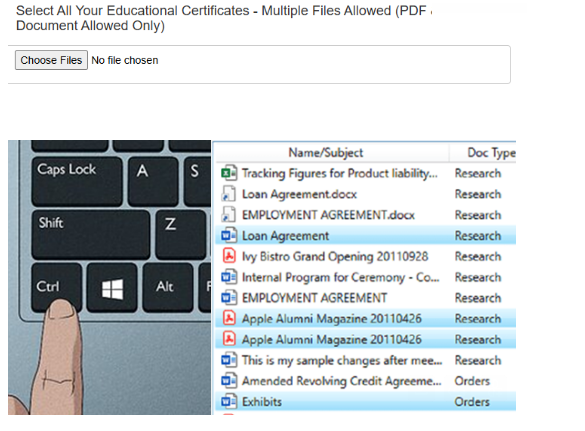
e. Applicants should refresh the page if any error occurs before refilling the form or re-initiate the process from the email received during sign-up.